You can delete a single child profile, or delete your full getXplain.ai account (which permanently deletes all profiles).
This page shows the exact steps inside the mobile app.
Deletions are permanent We may verify identity first
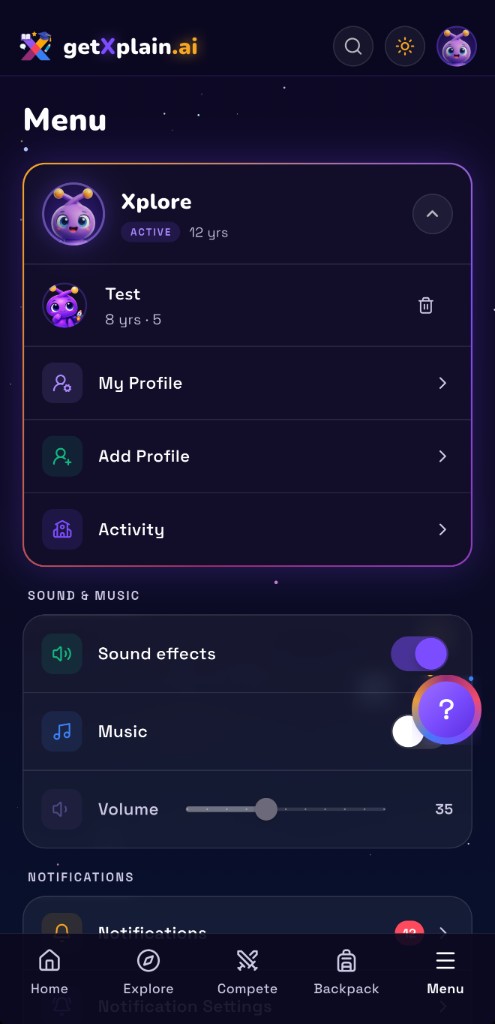
You can delete a child profile as long as it is not the currently active profile.
If the profile you want to delete is active, first switch to a different profile.
Open the app and go to the Menu tab.
At the top, expand the profile switcher (the box that shows the active profile).
Find the profile you want to remove.
Tap the trash icon next to that profile.
Confirm the deletion when prompted.
Tip: the active profile can’t be deleted. Switch profiles first, then delete.
Delete your entire account (and all profiles)
This permanently deletes your getXplain.ai account and removes all child profiles under it.
This action cannot be undone.
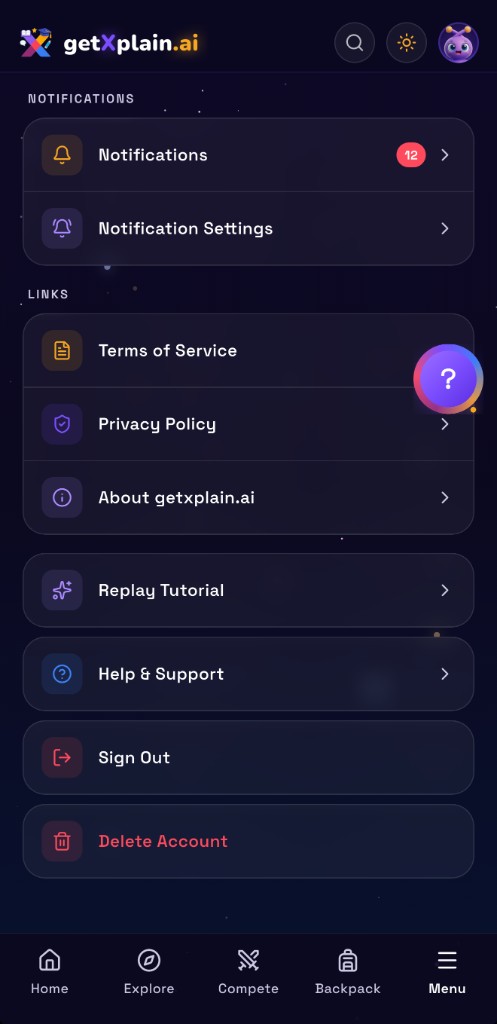
Open the app and go to the Menu tab.
Scroll to the bottom of the menu.
Tap Delete Account.
Follow the in-app prompts to confirm.
The “Delete Account” option is at the bottom of the Menu screen.
If the in-app process doesn’t work (or you can’t access your account)
If you’re unable to delete your account from the app for any reason (for example: you can’t sign in, the app crashes, or the button isn’t available),
you can submit a deletion request using our secure form: